

Going paperless has really simplified my life, and it can simplify yours, too. Over time, the stacks of documents, receipts, and important papers seem to pile up, and suddenly, you find yourself spending more time than necessary trying to find things. We live in a world where efficiency matters, and having a solid digital filing system can be a long-term investment in your productivity.
A digital filing system is really simple to set up and use. Imagine having every document you’ve ever received, scanned, or saved at your fingertips, searchable with just a few keystrokes. No more rifling through filing cabinets or messy drawers. You could retrieve everything from a year-old tax document to last week’s medical report in seconds. But to get to that stage, you need to lay the groundwork for a system that works for you and makes managing your files seamless. Let’s walk through the steps to go paperless and create a digital filing system that actually works.
Why Is Digital Filing Important?
So why digital filing is important? When everything is organized, you spend less time hunting down paperwork and more time focusing on things that matter—whether that’s your work, your business, or your personal life.
Digitizing your filing system is a smart way to protect your important documents. Everything is backed up, easy to access, and you’re no longer at the mercy of a misplaced folder or drawer stuffed full of random papers. Beyond the practical, there’s something freeing about reducing paper clutter—knowing you don’t have to sift through physical piles to find what you need gives you back control over your time. And in today’s fast-paced world, that’s invaluable.
Setting Up Your Digital Filing System
First, Scan Your Documents
First things first, scan any papers you have lying around—contracts, bills, receipts, or even personal notes.
You can do this with a reliable document scanner. There are plenty of options out there, but for convenience, many office printers have a scanning feature. If you don’t have a scanner, just take a picture of your documents with a smartphone app like Adobe Scan and convert them into PDFs from your phone. This works if you have a couple of documents to scan but for a large volume of paperwork, a document scanner is your best bet.
Figure Out Where to Store Them
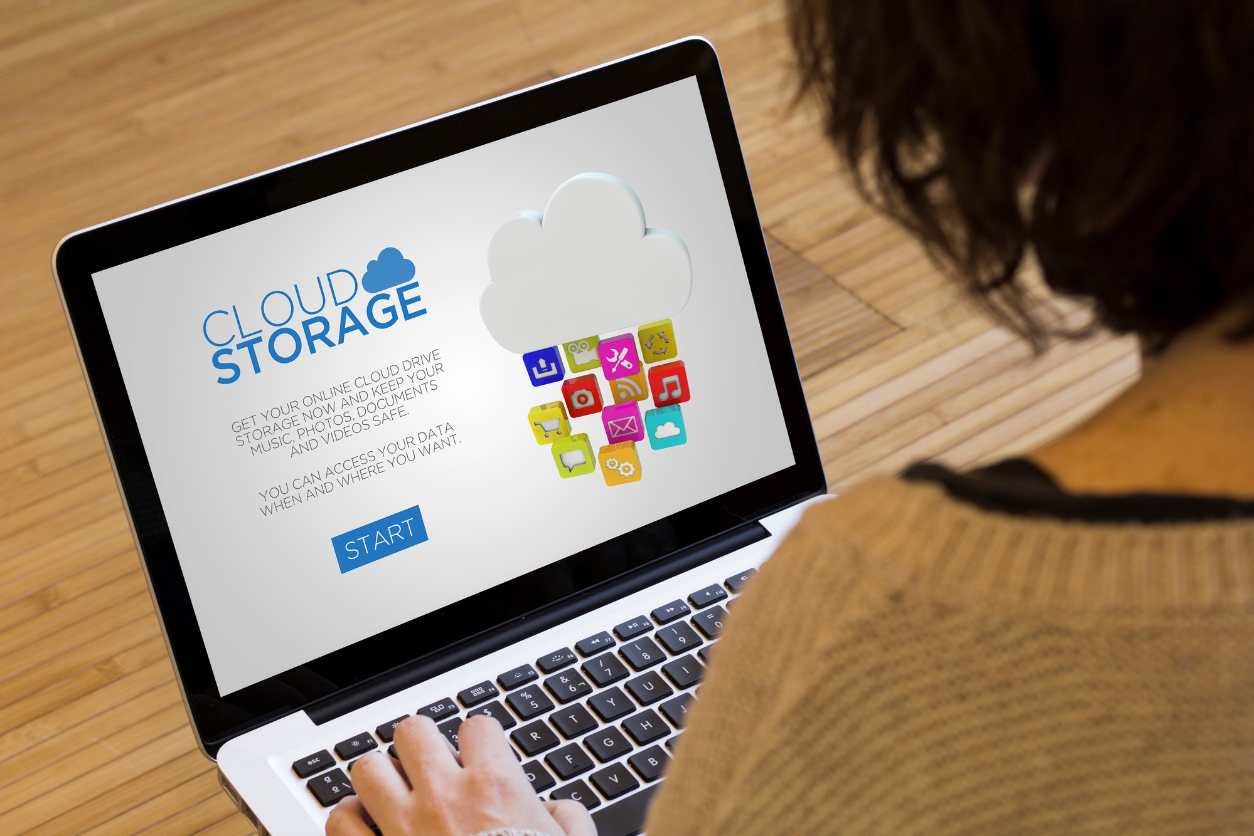
Once you have all your documents in a digital format, decide where you want to store them. Cloud storage services like Google Drive, Dropbox are one option. Or you could choose to store everything in a physical external hard drive. As long as the system is secure and accessible, it doesn’t matter what option you pick.
I prefer the convenience of cloud-based option. This way, I can accesss everything from any device and in the event of a hardware failure, all my files are safe as long as they are automatically backed up.
When I set up folders, I try to keep things as simple as possible. One way to do this is by creating broad categories at the top level of your folder hierarchy. Start with categories like “Personal,” “Financial,” “Work,” and “Legal.” Within each of those, create subfolders that make sense for your needs. “For instance, all folders for “Taxes,” “Bills,” and “Bank Statements” can go in “Financial.”
This makes the folder system intuitive and easy to navigate. Try not to overcomplicate things with too many layers of folders. You should be able to find any file within seconds by following a logical path!
Naming Conventions
File names should be as descriptive as possible without being unnecessarily long. Decide on a clear naming convention and stick to it to make finding documents easier with the search function.
If you’re filing a bill from a service provider, your file name could be something like “2024-07_Internet_Bill_XYZProvider.” This way, you’ve included the date, type of document, and the relevant service or provider, making it easy to locate.
A great approach (especially for financial records and receipts) is to also include dates in a year-month format (YYYY-MM) at the beginning of file names so your documents are automatically sorted chronologically.
Keep up With Your System
Like any system, your digital filing setup will need a little bit of maintenance. Scan and file documents as they come in so you don’t end up with a pile of digital files waiting to be organized. That’s just a recipe for disaster.
A few minutes each week should be more than enough to review and file any new documents. If you’re dealing with a high volume of paperwork, automated tools can help a lot by filing things as they’re scanned. I use Devonthink on my MacBook, which automatically classifies documents based on their contents but there are plenty of other apps as well that allow you to create rules that automatically sort documents into specific folders based on file names or metadata. This can save you a lot of time and ensure that your files are always where they need to be.
Create Backups
If you’re planning on making a digital filing system, you’ll need some sort of a backup in case something goes wrong and you can’t access your files. Google Drive, Dropbox and other cloud services are great for automatic backups. But for extra peace of mind, consider keeping a second backup on an external hard drive or a different cloud service.
The idea here is redundancy. If one storage system fails, you’ll always have another to fall back on. It’s not just about having a backup; it’s about having multiple layers of protection. A rule of thumb in digital storage is the 3-2-1 rule: keep three copies of your data, in a couple of different formats, with one copy stored offsite.